Facing the “uploaded APK has a different signature” error on Google Play Console? Learn about Android keystores, upload keys, app signing certificates, SHA-256 fingerprints, and how to fix signing mismatches.
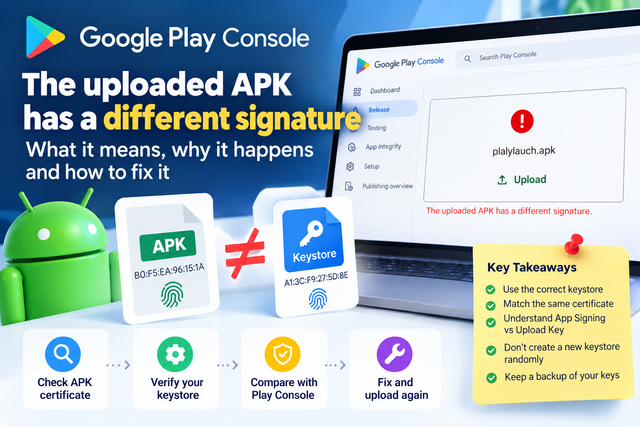
You have completed your Android app testing, prepared your release build, and you're finally ready to upload it to Google Play. Then Google Play Console suddenly shows: "The uploaded APK has a different signature."
This error can be confusing because the APK may work perfectly on your device. However, the problem is usually not with the application code. It is related to the signing certificate, keystore, upload key, or Google Play App Signing configuration.
What Does "The Uploaded APK Has a Different Signature" Mean?
Every Android application must be digitally signed before it can be distributed. The signing process uses a private key stored inside a keystore.
The basic release flow looks like this:
Android Project
      ↓
Release Build
      ↓
Keystore
      ↓
Signing Certificate
      ↓
APK / AAB
      ↓
Google Play Console
When you upload an APK or AAB, Google Play checks its signing information. If the certificate does not match the certificate expected for the application, Google Play can reject the upload.
Why Does This Error Happen?
1. A Different Keystore Was Used
This is one of the most common causes.
For example, an existing application may have originally been released using:
release-key.jksBut a new build might accidentally be signed using:
new-release-key.jksEven when the package name, application name, and source code are the same, the signing certificate can be different.
Google Play identifies the signing certificate, so the new APK may not be accepted.
2. A New Keystore Was Accidentally Generated
This can happen when changing computers, setting up a new development environment, migrating a project, or configuring a new CI/CD pipeline.
Do not immediately generate a new keystore when you see this error. First determine which certificate Google Play expects and which keystore was previously used.
3. A Debug APK Was Uploaded
Another common mistake is accidentally uploading a debug build instead of the intended release build.
Debug builds are normally signed with a debug certificate, while production releases should use the appropriate release signing configuration.
App Signing Key vs Upload Key
Google Play App Signing can make this topic confusing because there can be two important keys involved.
App Signing Key
The app signing key is used by Google Play to sign the application delivered to users.
Upload Key
The upload key is used by the developer to authenticate releases uploaded to Google Play.
These keys have different purposes. Therefore, when troubleshooting a signature issue, don't assume that every certificate shown in Play Console should be identical to the certificate inside your local APK.
How to Check Your APK Certificate
You can inspect the certificate of your APK using Android's apksigner tool:
apksigner verify --print-certs your-app.apkFor example:
apksigner verify --print-certs plalylauch.apkYou can also use:
keytool -printcert -jarfile plalylauch.apkLook for the certificate fingerprints, especially the SHA-256 fingerprint.
Check Your Keystore
If you have the original .jks or .keystore file, inspect it using:
keytool -list -v -keystore your-upload-key.jksThe output will contain information such as:
Alias name:
SHA1:
SHA256:
Valid from:
Compare the certificate information with the relevant certificate shown in Google Play Console.
Check Google Play Console App Integrity
Open your application in Google Play Console and go to:
Play Console → Your App → App Integrity
Review the signing information available there, including:
- App signing certificate
- Upload certificate
- SHA-1 fingerprint
- SHA-256 fingerprint
- Google Play App Signing configuration
The certificate you need to compare depends on whether you are troubleshooting an upload-key issue or an app-signing configuration issue.
What If Your Upload Keystore Is Lost?
Don't panic.
If Google Play App Signing is enabled, losing an upload key is different from losing the app signing key.
In supported cases, Google provides a process to reset or replace an upload key.
However, don't make changes to your signing configuration until you have identified exactly which key is involved.
Step-by-Step Troubleshooting Checklist
Step 1: Identify the APK
Make sure you are uploading the correct release APK or AAB.
Step 2: Check the APK Certificate
apksigner verify --print-certs your-app.apkStep 3: Identify the Keystore
Check your Gradle signing configuration and determine which keystore was used to create the release build.
Step 4: Inspect the Keystore
keytool -list -v -keystore your-keystore.jksStep 5: Check Play Console
Open App Integrity and identify the relevant upload and signing certificates.
Step 6: Compare the Fingerprints
Compare the appropriate SHA-256 certificate fingerprints.
Step 7: Rebuild Using the Correct Signing Configuration
Once you identify the correct keystore and signing configuration, generate a new release artifact.
Step 8: Upload Again
Upload the newly generated release APK or AAB to Google Play Console.
Things Developers Should Avoid
- Don't randomly create a new keystore.
- Don't delete your original keystore.
- Don't assume the package name determines the signing certificate.
- Don't upload a debug APK for production.
- Don't confuse the app signing key with the upload key.
- Don't store your only keystore on one computer.
- Don't commit private keys or passwords to a public Git repository.
How to Prevent Signing Problems in the Future
Keep a Secure Keystore Backup
Store your production keystore securely and maintain a controlled backup.
Document Your Signing Configuration
Maintain internal documentation for:
- Application ID
- Keystore location
- Key alias
- Upload certificate
- SHA-256 fingerprint
- CI/CD signing configuration
Be Careful With CI/CD
When moving Android builds to GitHub Actions or another CI/CD environment, make sure the intended upload key is configured securely. A CI/CD migration can unintentionally introduce a different signing key.
Final Takeaway
The Google Play error "The uploaded APK has a different signature" is more than a simple upload problem. It highlights how important Android signing is to the application release process.
Your source code can be correct. Your APK can work perfectly on a device. Your testing can be complete. But if the release is signed with the wrong certificate, Google Play can still reject the upload.
The safest troubleshooting approach is:
Identify the expected certificate → identify the keystore used → compare fingerprints → use the correct signing configuration → upload again.
Most importantly, treat your Android signing keys like production infrastructure. Protect them, document them, and maintain secure backups.
A structured testing and release workflow can help you prepare your app for Google Play and avoid common publishing problems.
About PlayLaunch
PlayLaunch helps Android developers prepare, test, and launch their applications with a structured approach to the Google Play publishing process.
Build. Test. Prepare. Launch.
Need 12 Testers for Your Google Play Closed Test?
PlayLaunch provides 12+ real active Android testers across 14 continuous days with 100% policy compliance to ensure your app passes Google Play production review smoothly.
Start Closed Testing Now